Chromatic for Vitest (beta)
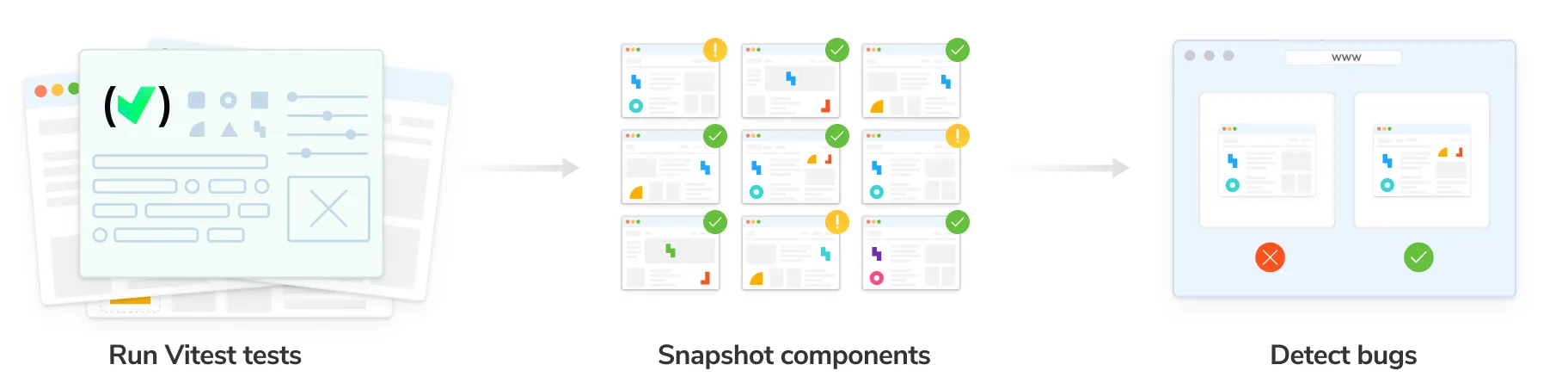
Chromatic’s visual tests integrate with Vitest via a plugin. This means you can transform your existing Vitest Browser Mode tests into visual regression tests with a minimal configuration file change. Start capturing interactive snapshots while Vitest tests run, and review visual changes in Chromatic’s cloud environment.
Why visual test with Vitest?
Vitest Browser Mode enables you to write component tests that drive the browser to simulate and verify key user interactions like ‘toggle accordion’ and ‘filter search results’. By snapshotting the UI states generated during your component tests, you can proactively catch visual bugs that might slip through traditional logic-based tests.
How does Chromatic work?
Chromatic works alongside your Browser Mode component tests. During your test run, Chromatic captures an archive of each test case and uploads it to Chromatic’s cloud. There, Chromatic generates snapshots and performs pixel diffing to identify any unintended visual changes.
How does Chromatic’s visual testing differ from Vitest’s?
While Vitest offers a basic ability to capture and visually compare screenshots of UI. Chromatic’s difference is that it provides a significantly more robust and developer-friendly visual testing solution:
- Robustness: Chromatic captures archives (including DOM, styling, and assets) of your test cases, which you can debug interactively in the Chromatic app, using browser dev tools. This eliminates the need to run further tests to troubleshoot errors.
- Workflow: Chromatic removes the need to manage snapshots locally in your repo. Chromatic’s snapshots are indexed automatically, linked to git commits, and stored in the cloud for easy access.
- Parallelized testing: Chromatic’s cloud infrastructure automatically scales to run all tests simultaneously, eliminating the need for you to configure multiple workers on your CI.
- Dedicated review app: Chromatic offers a suite of visual diffing tools to spot regressions fast. Features include unified and split diffs, highlighting ignored regions, spotlight mode to focus and zoom in on changes, and strobe diff to pinpoint subtle changes.
Requirements
- Vitest version 4.0.0 and above
- Vitest project must use @vitest/browser-playwright
Set up Chromatic for Vitest
1. Sign up and create a new project
Create a Chromatic account and/or sign in with your GitHub, GitLab, Bitbucket, or email. Then reach out to your point of contact at Chromatic to enable Vitest support for your account.
Generate a unique project token for your app by creating a project.
If your repository already has a Chromatic project linked to it, you can create an additional Chromatic project to run visual tests with Vitest. Follow the instructions for sub-projects support.
How to setup Chromatic if you require SSO, on-premises, or have a different Git provider.
“Unlinked” projects are the way to go if you use an OAuth provider or Git host that Chromatic doesn’t support yet, or if you need an enterprise plan but wish to trial Chromatic with your project first.
To set up Chromatic with an “unlinked” project:
- Make sure your code is in a local or self-hosted repository (Chromatic uses Git history to track baselines).
- Sign in via any of the supported providers, and make sure you’re on your personal account. This authenticates your profile only; it doesn’t link the project to your Git provider.
- Select “Create a project” and type your project name to create an unlinked project.
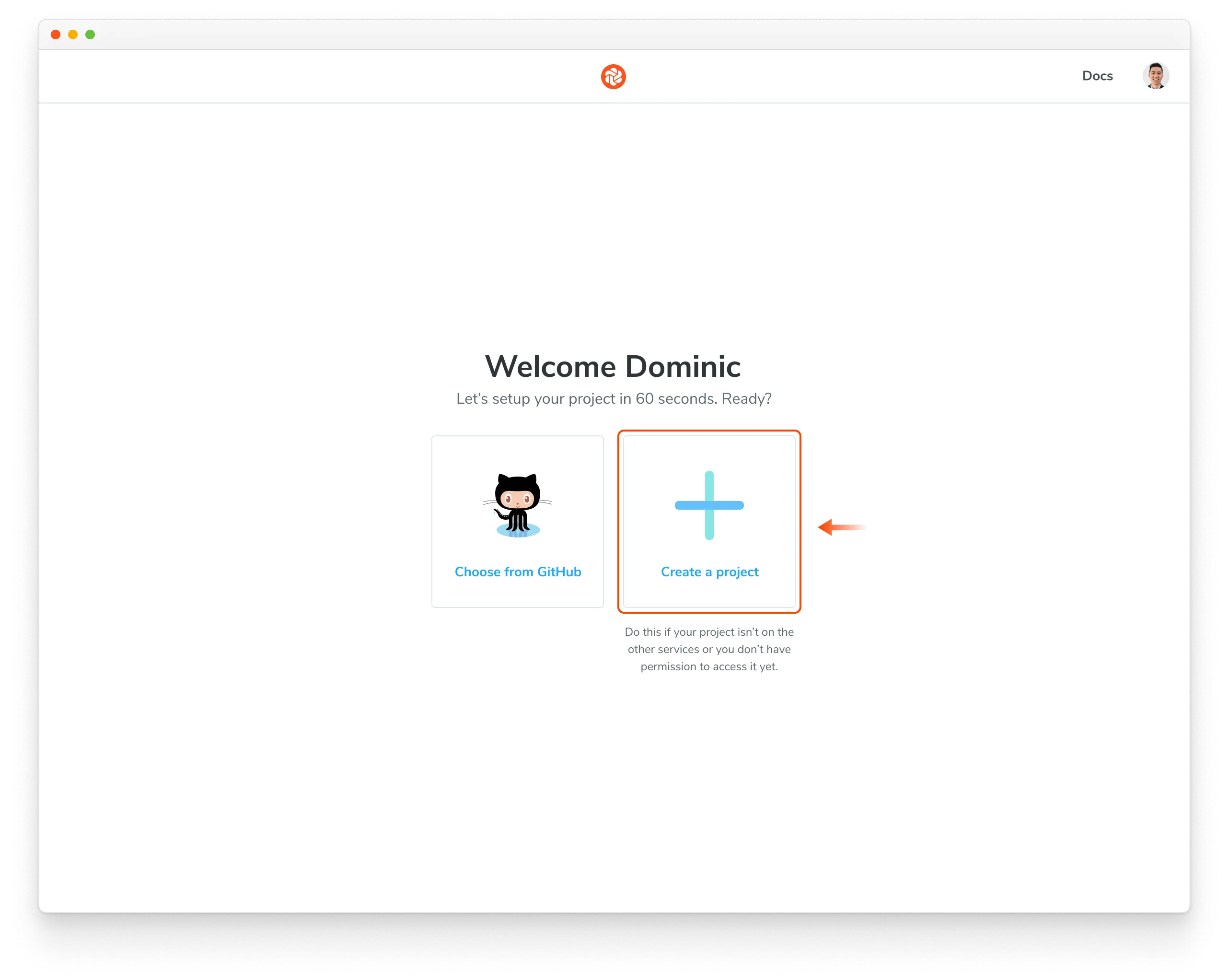
Nice! You created an unlinked project. This will allow you to get started with UI Testing workflow regardless of the underlying git provider. You can then configure your CI system to automatically run a Chromatic build on push.
The Chromatic CLI provides the option to generate a JUnit XML report of your build, which you can use to handle commit/pull request statuses yourself. For details, see the configuration reference options.
Unlinked projects have certain drawbacks:
- You won’t get automatic PR checks, so pull requests will not be marked with our status messages. You’ll need to set this up manually via your CI provider.
- Authentication and access control must be handled manually through user invites.
2. Install Chromatic
Install chromatic and @chromatic-com/vitest packages from npm.
$ npm install --save-dev chromatic @chromatic-com/vitest$ yarn add --dev chromatic @chromatic-com/vitest$ pnpm add --dev chromatic @chromatic-com/vitest3. Add Chromatic to Vitest tests
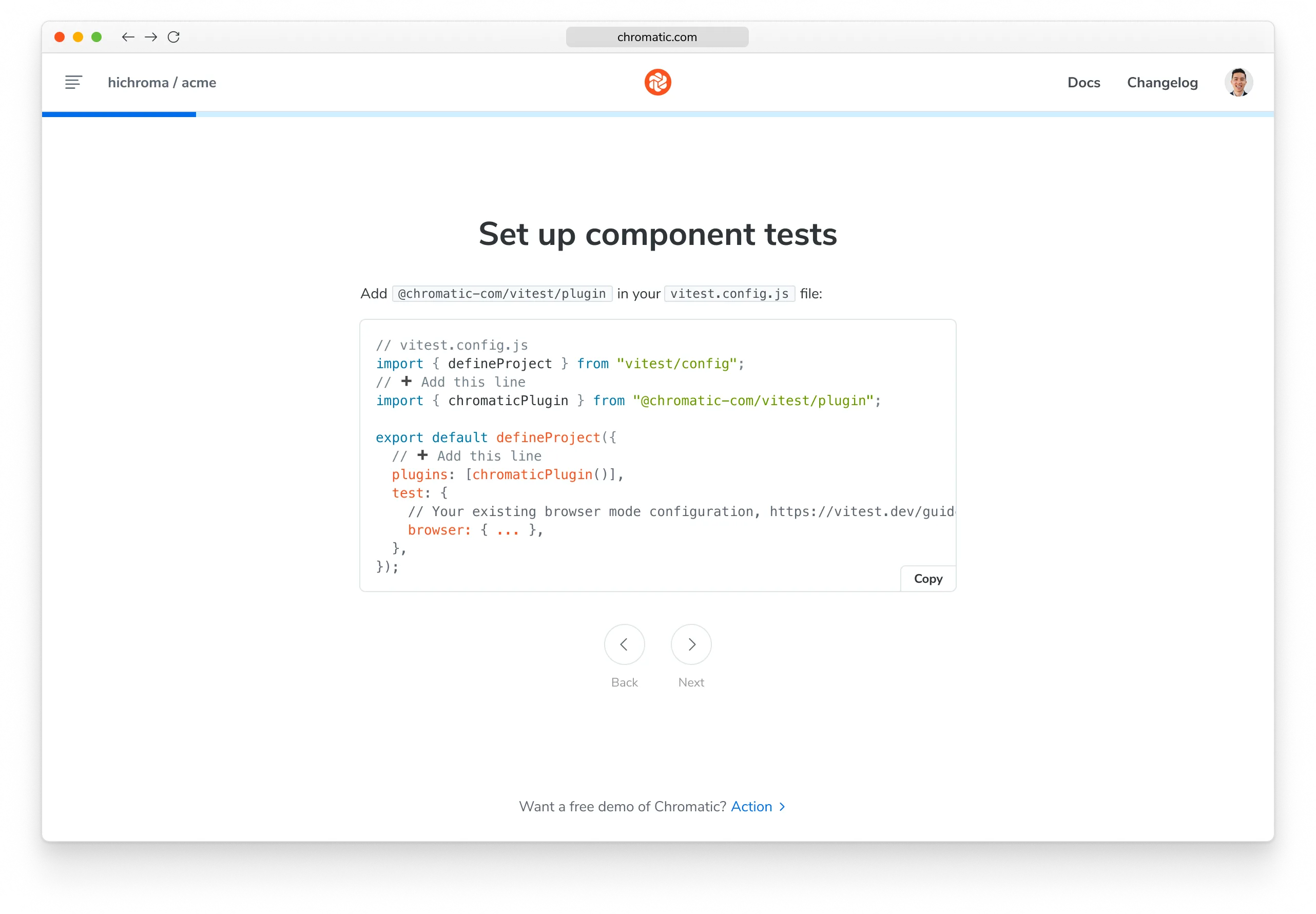
Add chromaticPlugin in your Vitest configuration file.
import { defineConfig } from 'vitest/config';
import { playwright } from '@vitest/browser-playwright';
import { chromaticPlugin } from '@chromatic-com/vitest/plugin';

export default defineConfig({
  plugins: [chromaticPlugin()],

  test: {
    // Your existing browser mode configuration, https://vitest.dev/guide/browser/#configuration
    browser: {
      provider: playwright(),
      enabled: true,
      instances: [{ browser: 'chromium' }],
    },
  },
});
If you are using browser mode in a single Vitest project, you can apply the plugin on project level:
import { defineConfig } from "vitest/config";
import { chromaticPlugin } from "@chromatic-com/vitest/plugin";

export default defineConfig({
  test: {
    projects: [
      {
        test: {
          name: "Unit Tests",
          include: ["**/*.test.ts"],
        },
      },

      // Option 1: For all browser tests
      {
        plugins: [chromaticPlugin()],
        test: {
          name: "Browser Tests",
          include: ["**/*.test.tsx"],
          browser: { ... }
        },
      },

      // Option 2: For tests ending with "*.visual.test.tsx" only
      {
        plugins: [chromaticPlugin()],
        test: {
          name: "Visual Regression",
          include: ["**/*.visual.test.tsx"],
          browser: { ... },
        },
      },
    ],
  },
});
Migrate from Vitest’s visual testing
Chromatic’s plugin will not interfere with Vitest’s built-in visual testing, and vice-versa. They can be used together in the same test suite.
If you wish to fully migrate to Chromatic, the toMatchScreenshot matcher can be replaced or removed, depending on where in the test it is called:
- In the middle of a test: Use Chromatic’s
takeSnapshotfunction to capture a snapshot at that point in the test. - At the end of a test: Chromatic will automatically capture a snapshot at the end of the test (unless disabled), so you can remove the
toMatchScreenshotcall.
import { test, expect } from 'vitest';
import { page } from 'vitest/browser';
import { render } from 'vitest-browser-react';
import { takeSnapshot } from '@chromatic-com/vitest';

import { Accordion } from '../src/components/Accordion';

test('can open accordion', async () => {
  await render(
    <Accordion header="Shipping details">
      Ships within 3 business days
    </Accordion>
  );

  await expect(page).toMatchScreenshot('closed');
  await takeSnapshot('closed');

  const toggle = page.getByRole('button', { name: 'Shipping details' });
  await toggle.click();

  const content = page.getByText('Ships within 3 business days');
  await expect.element(content).toBeInTheDocument();

  // This is the last line of the test, so Chromatic will automatically
  // capture a snapshot here. No `takeSnapshot` call is needed.
  await expect(page).toMatchScreenshot('open');
});
4. Run Vitest
Run your Vitest tests as you normally would.
While your Vitest tests are running, Chromatic captures an archive of your app’s UI for each test.
$ npx vitest$ yarn vitest$ pnpm vitest5. Run Chromatic
Use your project token and run the following command in your project directory.
$ npx chromatic --vitest -t=<TOKEN>$ yarn chromatic --vitest -t=<TOKEN>$ pnpm chromatic --vitest -t=<TOKEN>When you execute the chromatic command, it uploads this archive to Chromatic’s cloud infrastructure to capture a snapshot of each test.
6. Review changes
When complete, you’ll see the build status and a link to review the changes. Click on that link to open Chromatic.
✔ Started build 1
  → Continue setup at https://www.chromatic.com/setup?appId=...
✔ Build 1 auto-accepted
  → Tested X stories across 10 components; captured 10 snapshots in 1 minute 3 seconds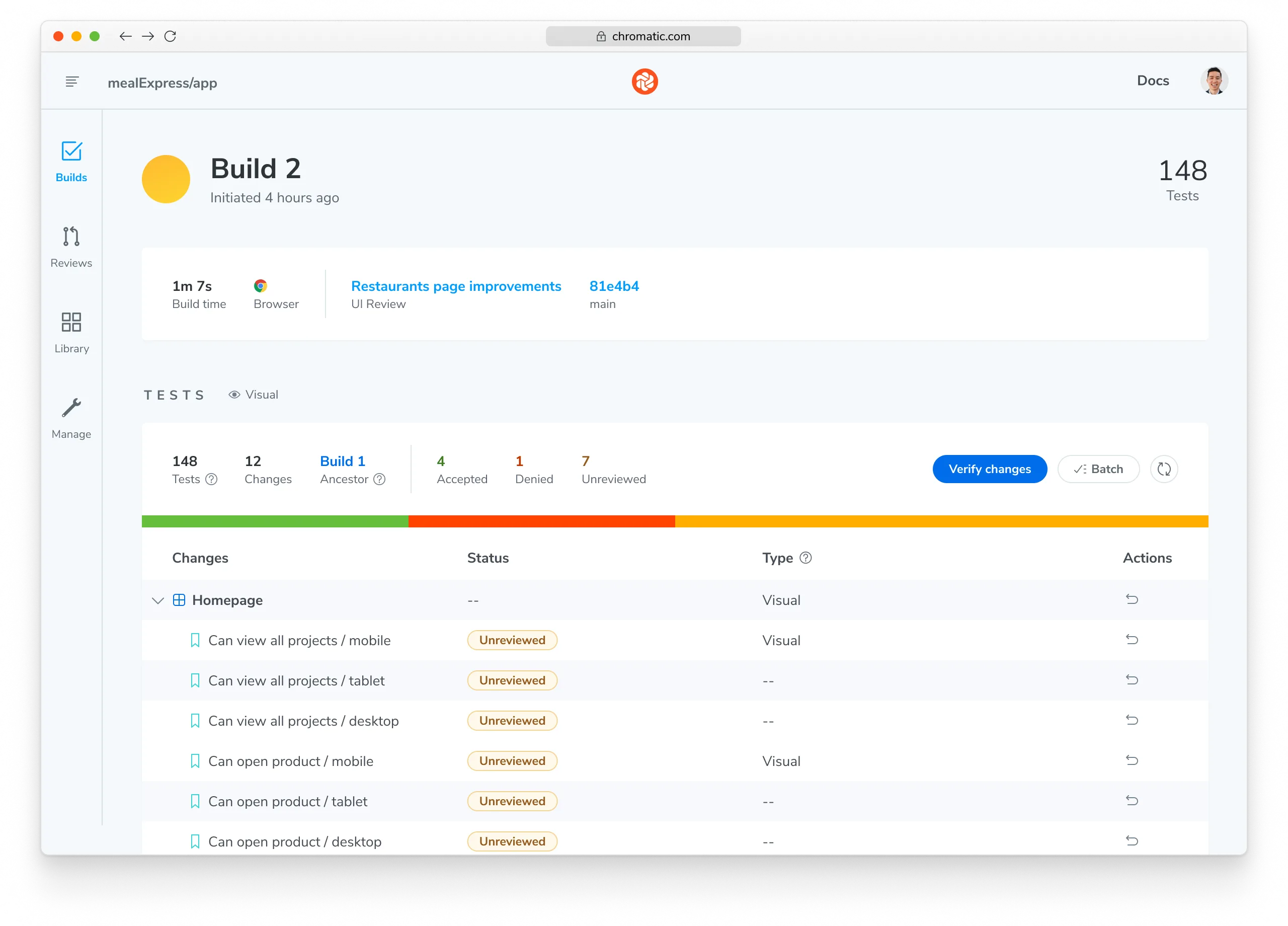
How can I change the name of a test?
By default, the name and surrounding hierarchy of a test in a Chromatic build is generated based on the file path, suite name(s), and test name in Vitest. Sometimes, the file path and component result in a less than helpful display in the build table. For example, you could have test files located at src/pages/dashboard/Page.test.tsx and src/pages/settings/Page.test.tsx, which would result in both tests being displayed as Page in the build table, making it difficult to differentiate between them:
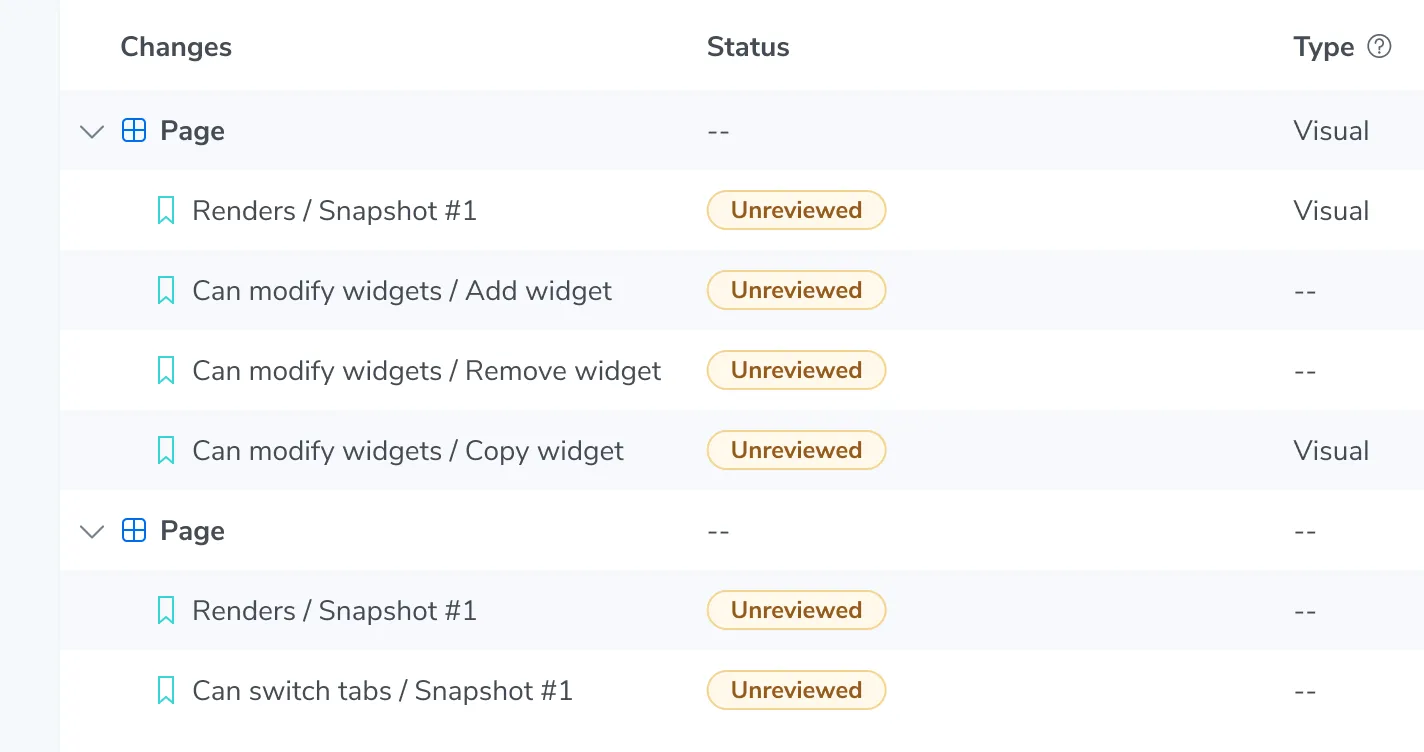
You can customize this name by calling configure function from @chromatic-com/vitest with the title option in the test file.
import { describe, test } from 'vitest';
import { configure } from '@chromatic-com/vitest';

import { Page } from './Page';

configure({ title: 'Dashboard' });

test('Dashboard', async () => {
  await render(<Page />);
});
Which displays like this in the build table:
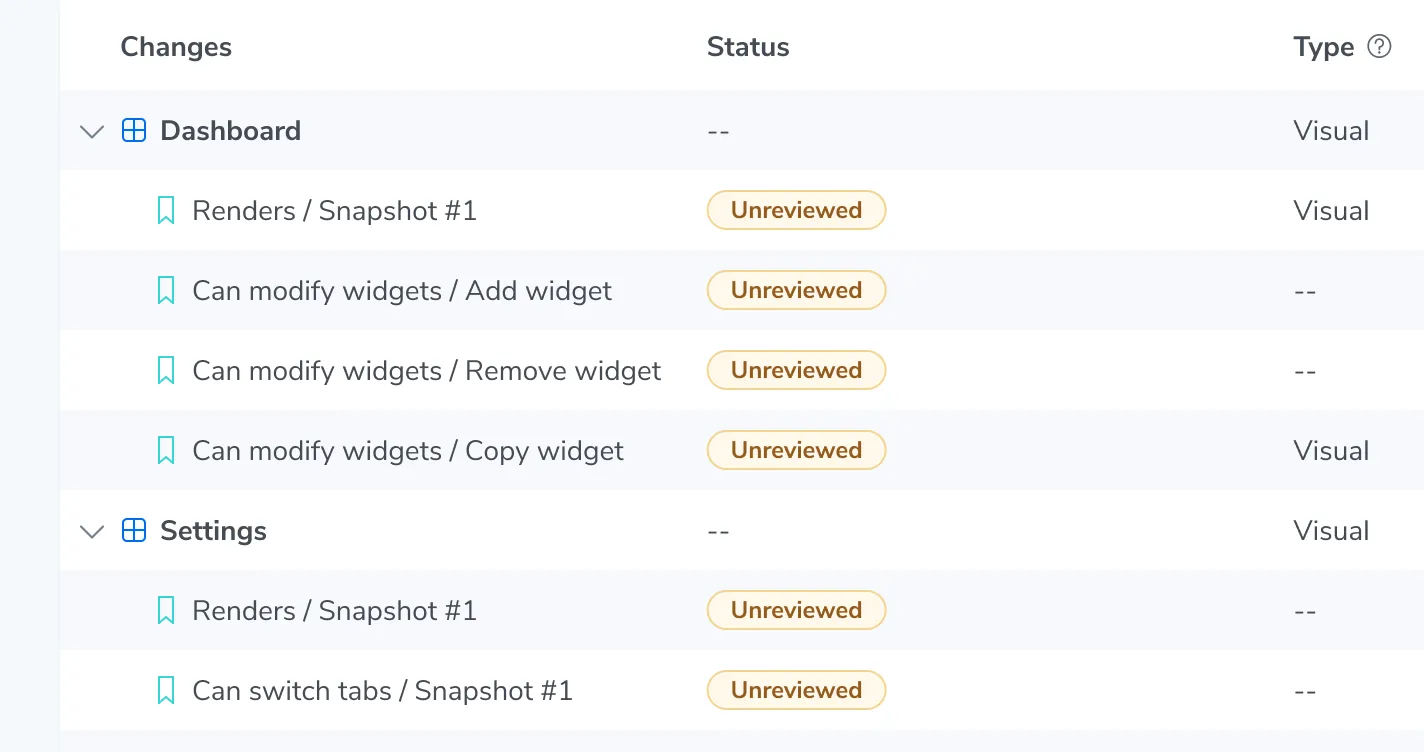
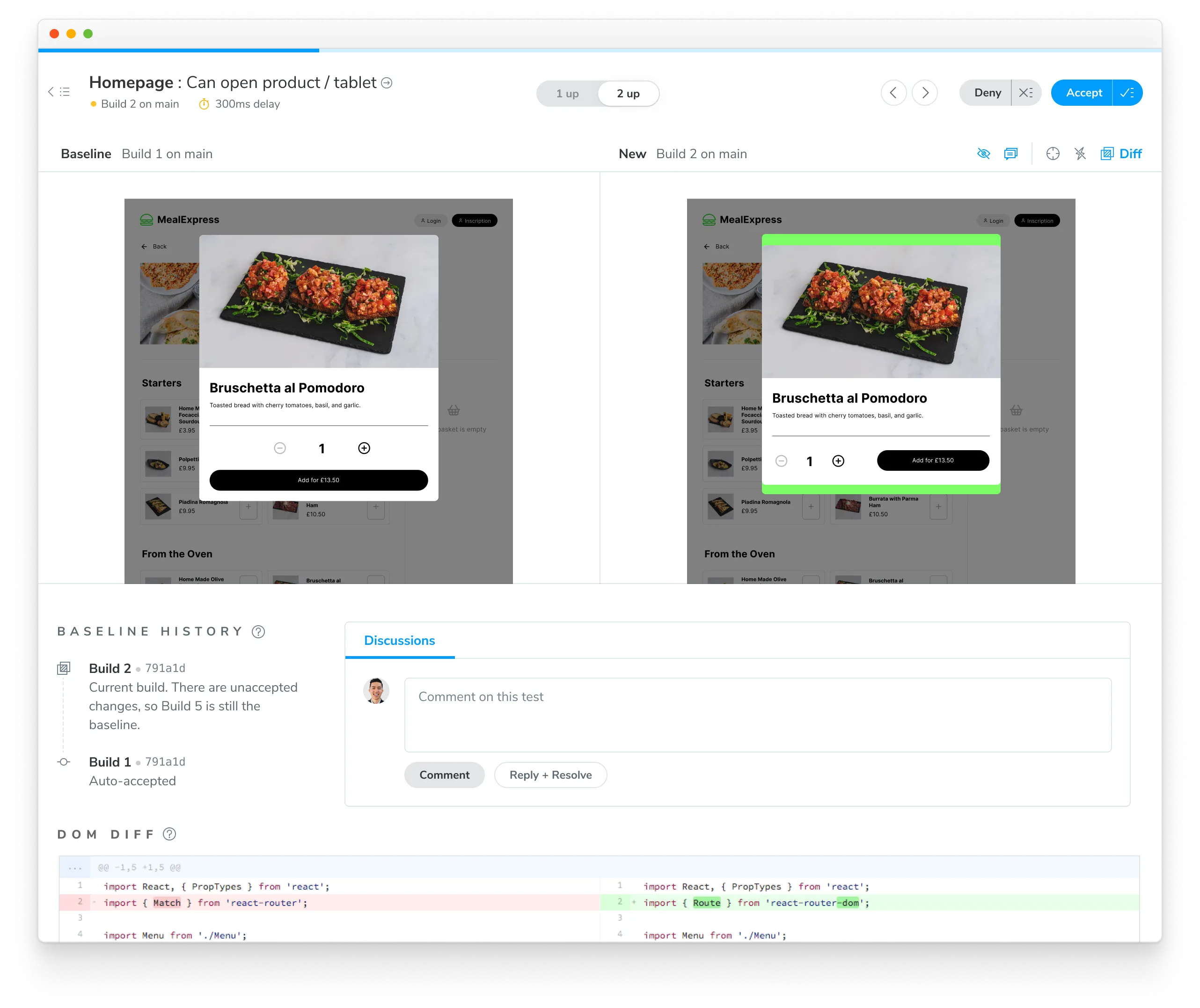
The build will be marked “unreviewed” and the changes will be listed in the “Tests” table. Go through each snapshot to review the diff and approve or reject the change.
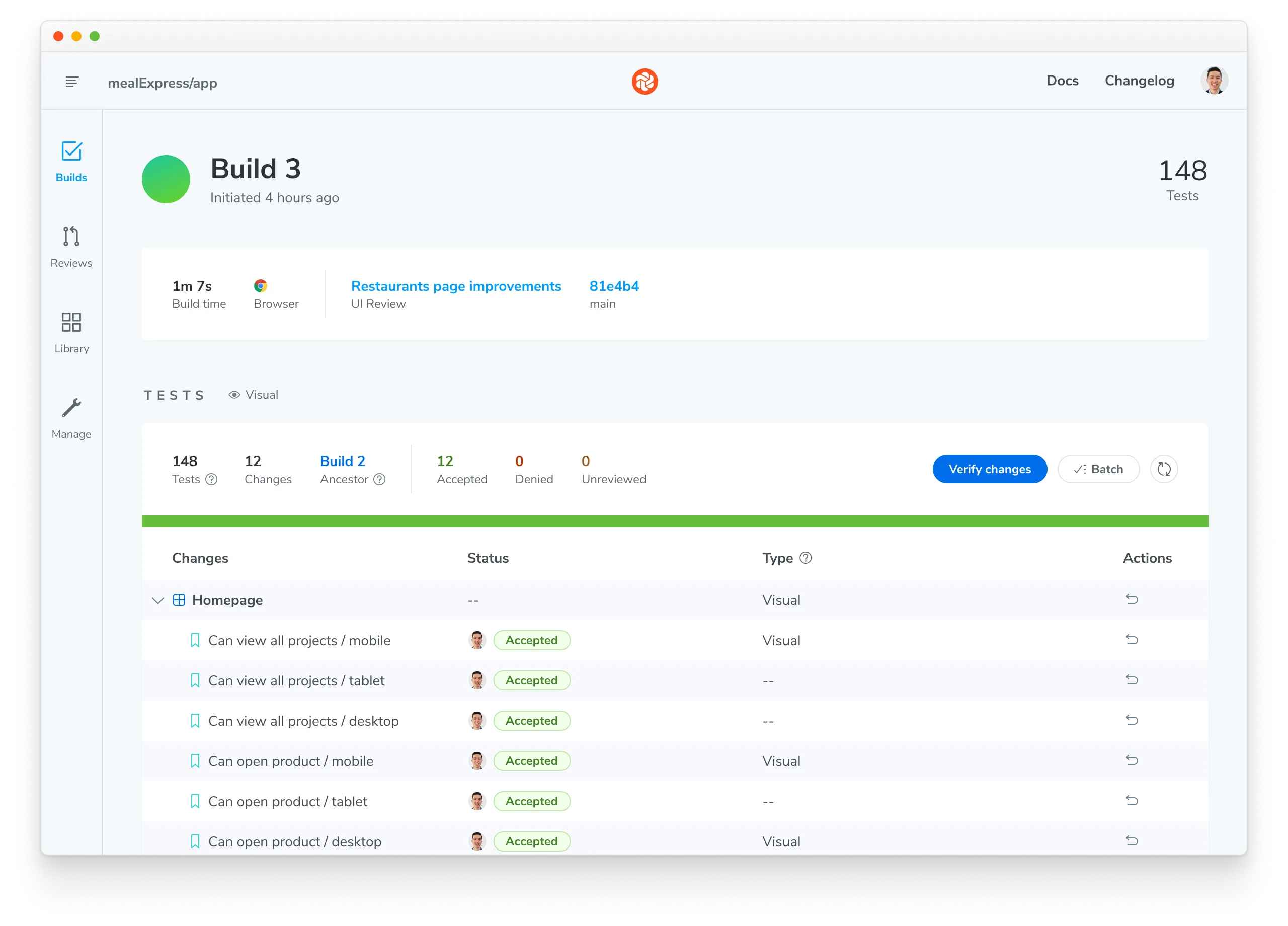
Once you accept all changes, your build is marked as passed 🟢. This updates the baselines for those tests, ensuring future snapshots are compared against the latest approved version.
Next: enhance your UI Testing workflow
You’re building robust components by uncovering bugs during development. Take your testing to the next level and safeguard against visual bugs by automating Chromatic whenever you push code.

Integrate Chromatic into your CI pipeline to get notified about any visual changes introduced by a pull request. Chromatic runs test any time you push code and reports changes via the “UI Tests” badge for your pull request.
Working with agents
There are a few aspects of Chromatic for Vitest that you may need to teach an agent to handle. Here is a sample block of instructions you can provide to your agent:
When writing Vitest Browser Mode tests, consider component states that are important to capture visually. For example, if a component has a closed state and an open state, write tests that simulate those states and capture snapshots of them. Snapshots are automatically captured at the end of each test (unless disabled with `disableAutoSnapshot`), but you can also capture snapshots at specific points in the test using the `takeSnapshot` function from `@chromatic-com/vitest`.

`@chromatic-com/vitest` can be configured in the Vitest configuration file or in individual test files. See: https://chromatic.com/docs/vitest/configure

You can run visual tests locally (after running Vitest tests) using the `chromatic --vitest -t=<TOKEN>` command with your project token.
Advanced configuration options
Take full control of your Chromatic and Vitest setup to match your team’s specific workflows. Here are some powerful customizations we offer:
- Take targeted snapshots: Learn how to programmatically capture snapshots at specific points during your tests.
- Fine-tune snapshot capture: Add delays before snapshots, modify the sensitivity threshold for change detection, and employ other granular controls.
- Test for flexible user preferences: Ensure your UI gracefully adapts to user preferences like
forced-colorsandprefers-reduced-motion. - Manage sharded Vitest runs: If your Vitest test suite is distributed across multiple CI jobs, learn how to coordinate their completion before running Chromatic.
Frequently asked questions
Command error git log -n 1
This error often appears when git is not available in your CI environment. Chromatic uses git to associate commits to pull/merge requests and set baselines. We require that an executable git is available (on the $PATH ) of the chromatic script.
Common cases:
- Docker containers: Git may not be installed on certain Docker containers. You’ll need to make the image includes Git.
- Heroku CI: Git history isn’t available by default. You’ll have to give Heroku auth access to your repo so that it can clone it before running CI. This can be unideal. Some customers end up using other CI providers to run Chromatic like GitHub Actions (free) or CircleCI.
- Google Cloud CI: The
.gitfolder is ignored by default. Based on their documentation you can try.gcloudignore. However, some customers have run into trouble with this solution and instead opted to use other CI providers to run Chromatic like GitHub Actions (free) or CircleCI. - You don’t use Git: Enable Git version control in your project and try Chromatic again.
Debug yourself:
- Try running the command manually
git log -n 1 --format="%H,%ct,%ce,%cn"and check if there are errors
Why do my builds timeout
Chromatic takes snapshots very quickly. However, if we lose the connection to your server (for instance if you stop your server mid-build, or your internet connection goes down), builds can time out. Check your connection and try restarting the build.
Why am I getting a ERR_INVALID_ARG_TYPE error?
If you’re encountering the following error in a Playwright/Cypress project:
TypeError [ERR_INVALID_ARG_TYPE]: The "paths[1]" argument must be of type string. Received undefined
  at Object.resolve (node:path:1222:7)
  at binPath (/Users/aaa/dev/temp/chromatic-e2e-examples/node_modules/@chromatic-com/playwright/dist/bin/build-archive-storybook.js:15:2773)
  at /Users/aaa/dev/temp/chromatic-e2e-examples/node_modules/@chromatic-com/playwright/dist/bin/build-archive-storybook.js:15:2630 {
code: 'ERR_INVALID_ARG_TYPE'
This issue likely due to a dependency conflict with Storybook versions in your project. You’ll have the following in your package.json:
"overrides": {
  "storybook": "$storybook"
}
This override force Chromatic to use an incompatible version of Storybook with Playwright/Chromatic, leading to errors. To resolve this, remove the Storybook overrides line from your package.json.
How can I disable automatic snapshots for a test?
By default, Chromatic captures a snapshot at the end of each test. You can disable this behavior for specific test cases, a suite of tests, test files, or the entire project using the disableAutoSnapshot option.
You can also make automatic snapshots opt-in instead of opt-out, by disabling them at the project level and then re-enabling them for specific test files, suites, or test cases.
Regardless of whether a test has automatic snapshots enabled or disabled, you can always capture a snapshot programmatically at any point during the test using the takeSnapshot function.
Can I use TurboSnap with Vitest visual tests?
Yes. TurboSnap is supported. See the dedicated guide for more information.
Why is there a Build your Storybook step when running Vitest visual tests?
Chromatic creates and runs a Storybook archive based on your Vitest project, so the build Storybook step is required. Chromatic doesn’t run Vitest directly.
Is using @vitest/browser-playwright with Chromium based browsers mandatory when running Vitest with Chromatic?
Yes. Chromatic relies on Chromium for snapshotting, so Chromium based browsers must be included in your Vitest configuration.
Omitting it will trigger error: Failed to run chromatic --vitest
If you have use case for other browser providers, feel free to send a feature request.
Refer to Vitest documentation: Vitest | Browser Mode